
Android SDK Logging and Troubleshooting
This page covers capturing Arkose Android SDK logs from a device or emulator using adb, for both the Jetpack Compose and XML/View-based integration paths.
Prerequisites
- Install the Android Debug Bridge (adb) binary or driver on the machine where the logs will go.
- An Android phone or Android emulator. On it, under Settings > Developer, enable the USB Debugging option
Steps
On the machine where the logs will go:
-
Download the SDK platform for your platform (Windows / Mac) from SDK Platform Tools release notes | Android Developers
-
Unzip the folder and check it contains an
adb.exefile. -
From the command prompt, enter the path where
adbis located on the machine. This image shows an example of what you get after you enter the path.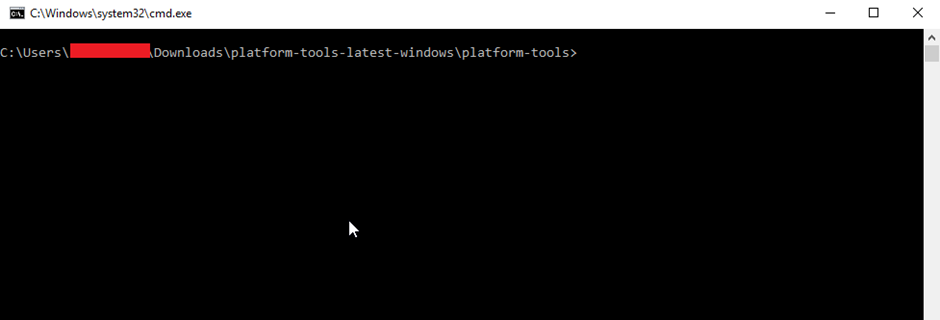
-
On your Android device, enable USB debugging:
-
At Phone>Settings>About Phone>, tap Build Number seven times. You should see a message saying that you are now a developer.
-
On the device, go to Developer options and turn on USB debugging.
-
Connect the device to the system and trust/allow the system.
-
To test if
adbis working properly:-
Use a USB cable to connect your Android device to your computer.
-
At the computer’s command prompt, run the command
adb devicesto show the devices connected to the system.
-
-
-
To start verbose logging in the terminal window, at the computer’s command prompt, run
adb logcat -s ArkoseLabsShowEnforcementChallenge:vIf instead, you want to save the logs, runadb logcat -d > <path-where-you-want-to-save-file>/<filename>.txtCtrl+C stops the logging.
adb logcat Options
adb logcat Optionsadb logcat has several command options. These include:
-
adb logcat: Prints log data to the screen. -
adb logcat *:V: Lowest priority, filter to only show Verbose level log entries. -
adb logcat --help: Shows alllogcatoptions and arguments. -
adb logcat -c: Clears the logs . -
adb logcat -s <TAG>:<PRIORITY>:-
-s: Sets default filter to silent. -
<TAG>: A log component tag (or*for all). -
<PRIORITY>can be:V: Verbose (default for<TAG>)D: Debug (default for*)I: InfoW: WarnE: ErrorF: FatalS: Silent (suppress all output)
-
Updated 2 months ago